

Confirming payments
Check a reported transfer against the bank statement and confirm it, turn it down, or reverse a payment that was entered by mistake.
Until an officer confirms it, a payment is only a claim. Confirming is how a transfer becomes money in the circle, and it is the step that gives the member a receipt. This page covers confirming a transfer, turning one down, and reversing a payment that should not have been confirmed.
Before you start
- You need the reconcile permission. A circle's officers usually have it.
- Have the circle's bank statement open. SocietyLedger never sees your bank account, so the check is yours.
- Cash recorded by a collector is not confirmed here. It is confirmed when the collector's handover is counted. See Handovers and counting cash.
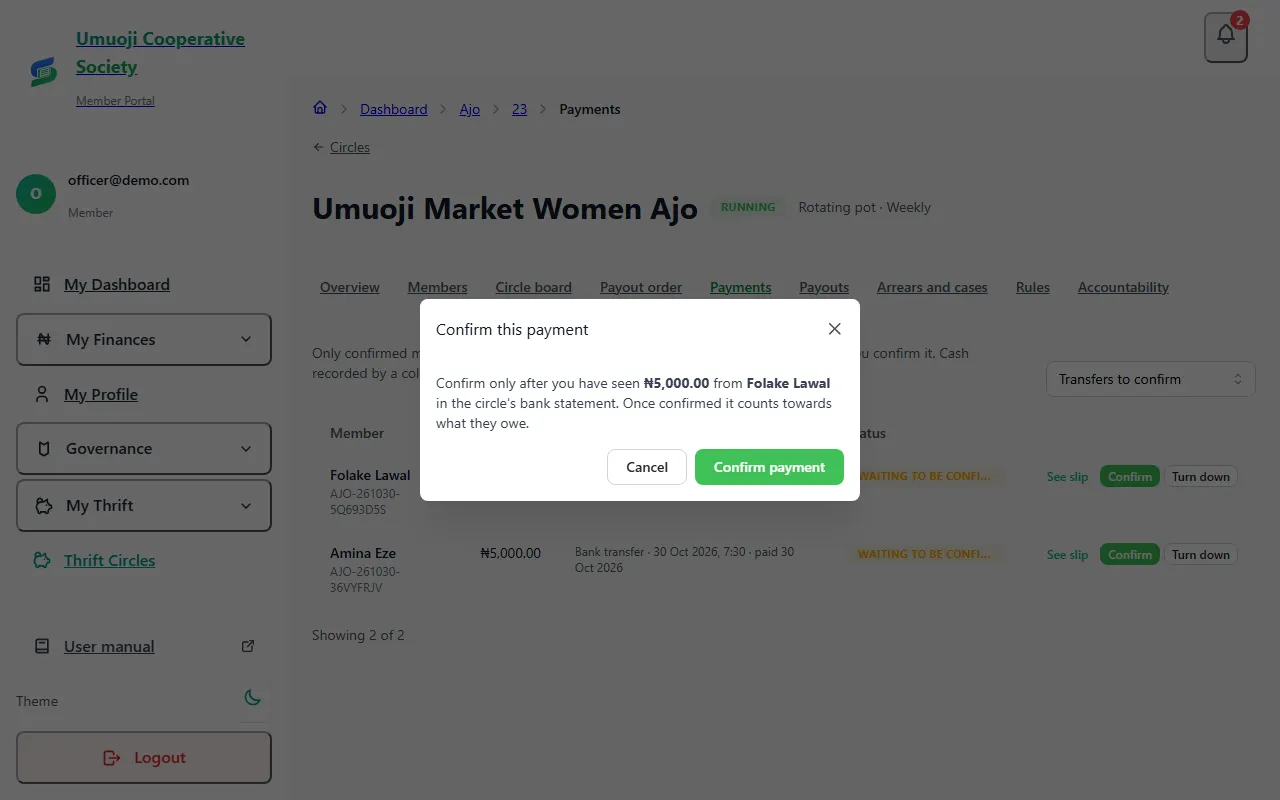
Confirm a transfer
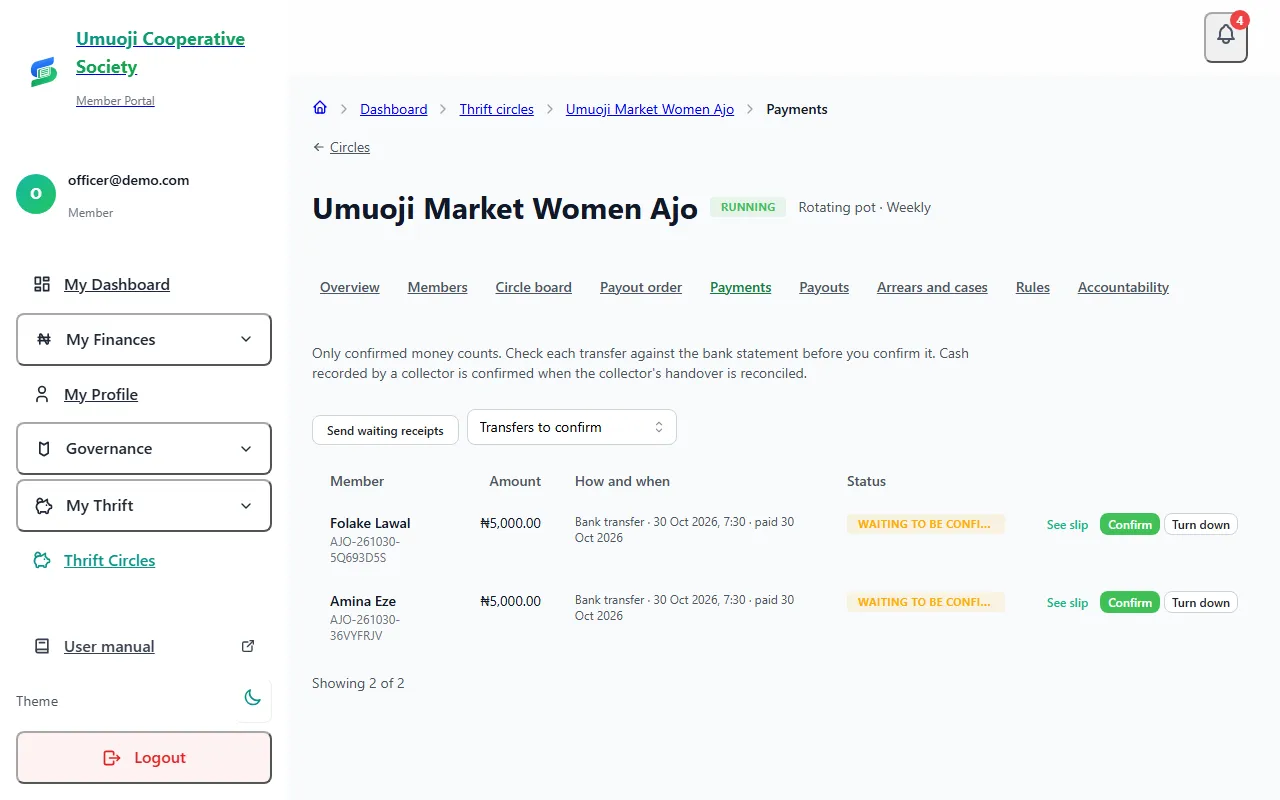
Receipts that were not sent
If a receipt could not be sent when you confirmed a payment (for example the circle had no SMS credits then), it waits. On the Payments page, select Send waiting receipts to try again. It tells you how many went and how many are still waiting.
Where to find payments
Open Payments in the sidebar (on the phone: Manage, Thrift, then Payments). It lists the payments waiting for you across every circle at once, with a badge on the menu showing how many transfers are waiting. Pick a circle to narrow it down, or use the Payments tab inside one circle. For each transfer you can open the slip, then Confirm or Turn down. This is the same in an association with the Thrift add-on and in a standalone thrift group.
Record a payment for a member
Sometimes a member pays and never reports it, for example because they were too busy to attach a slip. If you can confirm payments and you have seen it at the bank:
- Select Record a payment on the Payments page.
- Choose the circle and the person, then enter the amount, the date paid and the bank reference exactly as it appears on the statement.
- Under How you checked it, write a short note, for example "seen in the 14 Nov statement". You can attach a slip if you have one.
- Select Record and confirm.
It is confirmed in the same step, so it counts at once and the member is told. It is marked recorded by an officer from the bank on the member's payment list and in Officer accountability, so an admin can see how many were done this way. You cannot do this for your own payment, a bank reference that is already on a confirmed payment is refused, and like any payment it can be reversed with a reason.
If you can manage a circle but cannot confirm payments, the same form says Record: it records the payment as reported, and a person who can confirm checks it against the bank statement.
Warnings you may see
- A possible duplicate. SocietyLedger noticed that the same proof file, or the same bank reference, was used on another payment in your association. Look again. If it really is a different payment, tick I checked, and this is a different payment to go on. This catches a slip used twice.
- "I am the only person who can confirm here." You cannot normally confirm a payment you recorded, or your own. A circle with one person who can confirm may confirm its own, but only by ticking this box and writing a note. It is flagged on the accountability page as confirmed by the person who recorded it.
What happens next
The payment becomes Confirmed, is counted towards what the member owes, and is shown in the circle's figures. The member gets a receipt and a message, and the instalments it covers are marked paid, oldest first. If a late fee was waiting to be paid, it is paid after the instalments.
Turn a payment down
If the money is not in the statement, or the slip does not match, select Turn down, write a reason, and save. The reason is shown to the member. A turned-down payment is never counted, and nothing needs undoing.
Reverse a payment
If a payment was confirmed by mistake, for example it was entered twice, you can reverse it.
A reversal never deletes anything. It writes a new entry that cancels the first, with your name and your reason, and the amount comes off the member's record. The member's instalments go back to unpaid. A payment can be reversed once, and a reversal cannot itself be reversed: to put the money back, record the payment again.
Reversing a payment that funded a payout
If a payout has been prepared from a round this payment funded, reversing the payment leaves the round short, and that payout cannot go on until the round is funded again. Speak to your admin before reversing a payment from a round that has a payout in progress.
Related
Payment statuses
What Paid on time, Reported, Overdue, Missed and the other words mean in a circle, who decides them, and what counts as paid.
Cash reconciliation
How cash a collector takes in becomes confirmed money: recorded, handed over, counted, then confirmed, and what happens when the count is short.
Paying and sending proof
Send your contribution to the circle's bank account, then tell SocietyLedger you have paid and attach your slip, and what happens until it is confirmed.
Last updated 31 October 2026
The payout order and the draw
How a rotating pot decides who is paid when: the recorded draw, shares, swapping places, and emergency changes with a reason.
Preparing, approving and recording a payout
How a payout is worked out, approved by a second person, paid from the circle's own account and recorded, and what to do if the transfer fails.