

Your statement
Download your savings statement as a PDF or CSV, or a circle statement you can share in the group chat, and how anyone can check it is genuine.
A statement is a record you can keep, print or send. SocietyLedger makes two kinds, depending on how your circle works: your own savings statement if you save through a collector, and a circle statement if you are in a rotating pot.
Before you start
You must be in the circle. A statement shows only what you are allowed to see: your own payments if you save through a collector, or what the Circle board shows if you are in a rotating pot.
Your savings statement (collector thrift)
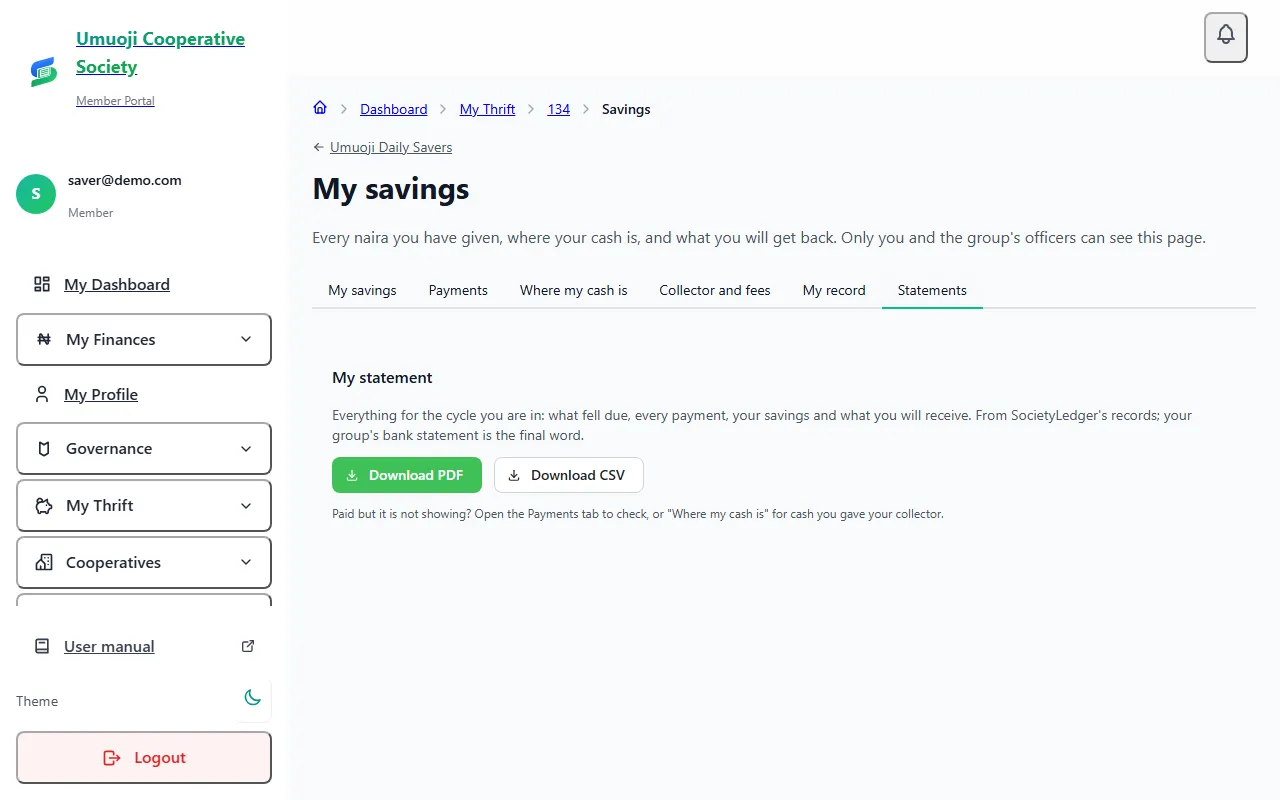
It covers the cycle you are in: what fell due, every payment, your savings and what you will receive. It says that it is from SocietyLedger's records and that your group's bank statement is the final word. Earlier cycles appear under My record with their totals.
A receipt for one confirmed payment is separate. Open the Payments tab and select Receipt next to a confirmed payment.
The circle statement (rotating pot)
It is a PDF built from the same board you see on screen, so it matches the circle on the day it is made, and shows nothing the board does not show. Names follow the circle's name rule, and there is never a phone number, email, address, bank account, guarantor detail, note or proof.
How anyone can check a statement is genuine
Every circle statement carries a short code (for example K7M2P-9XQ4R). Anyone who holds the statement, including a person who does not use SocietyLedger, can check it.
The page shows circle totals only, never a name. It is how a circle can send a statement to a bank, a landlord or the group chat, and the person who gets it can tell it was not edited.
A note on the naira sign in a PDF
PDFs write money as NGN 5,000.00, because the fonts built into PDFs have no naira sign. A CSV and every screen use ₦5,000.00. They are the same figures.
What happens next
A statement is a snapshot. If a payment is confirmed after you make it, make a new one. A statement made today does not change what your circle's figures are.
Share a statement, not your login
Send the PDF or its code, never your password or a phone confirmation code. Nobody who needs to check a statement needs to sign in.
Related
Your savings as a saver
If you save through a collector: see every naira you have given, where your cash is, what you will get back, and what to do at the end of the cycle.
What members can see in a circle
What each member of a rotating pot sees about the circle, what stays private, and what collector-thrift savers see about their own savings.
Payment statuses
What Paid on time, Reported, Overdue, Missed and the other words mean in a circle, who decides them, and what counts as paid.
Last updated 30 October 2026
Raising a query about a payment
If you paid but it does not show, tell your circle with I already paid this, attach your evidence, and see how an officer decides it.
Leaving a circle
When you can leave a circle, what happens to what you have paid and are owed, and what to do instead if the circle has already started paying out.