

Guarantors
Record a guarantor's agreement for a member, in person or by sending them a link, and understand what a guarantor is and is not.
A guarantor is someone who agrees to stand behind a member: a sister, a brother, a friend or an employer. In SocietyLedger, a guarantor is a recorded agreement and nothing more. It is an honest record that a named person was told what the circle expects and agreed. It does not create a legal guarantee, SocietyLedger does not enforce one, and nothing is ever taken from a guarantor automatically.
Whether a guarantor is needed is a circle rule: Not needed, Optional or Required before joining. See Rules, grace and late fees.
Before you start
- You need the manage permission.
- If the circle requires a guarantor, the member stays in Waiting for approval until one is recorded. The Waiting for column on the Members tab says so.
- Have the guarantor's name, phone number and relationship to the member.
Record an agreement in person
Use this when the guarantor is with you, or you have spoken to them by phone and they agreed.
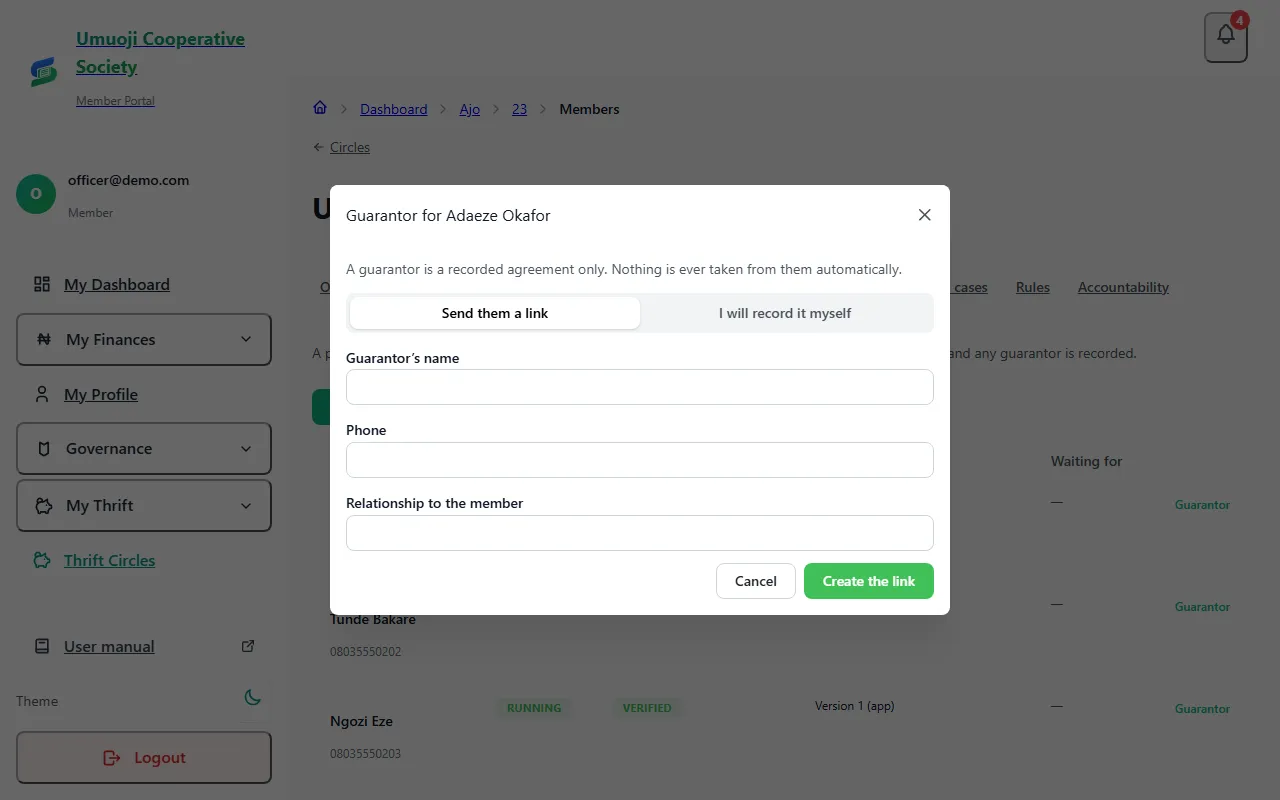
Or send the guarantor a link
Use this when the guarantor is not with you. They read the wording and accept it themselves, on their own phone.
A few things to know about the link:
- It can be used once, and it expires after 7 days.
- Creating another link replaces the first, so an old link in someone's messages cannot be used.
- You are told when the guarantor accepts, and the member is activated if nothing else is missing.
Guarantor consent opens in a browser
On a phone, you create and share the link from the app, and the guarantor opens it in their browser. They never need the SocietyLedger app.
What happens next
The member's row shows guarantor on file. If a new agreement is recorded later, it replaces the earlier one, and the earlier one stays on file, so the history is complete.
If someone later falls behind, a guarantor is not charged. The circle can contact the guarantor, but SocietyLedger will only record that it did. See Late fees, default cases, repayment plans and disputes.
Related
Adding and approving people
Add people to a circle, see what each one is still waiting for, and approve them so they can start, including adding many at once from a list.
Rules, grace and late fees
Set a circle's rules: grace days, late fee, guarantors, what happens if someone stops paying, and what members can see. And how to change them fairly.
Staying safe in a circle
What SocietyLedger does and does not do with your money, and the habits that protect you, your savers and your circle.
Last updated 30 October 2026
Starting a circle
What must be true before a circle can start, what each refusal means (people waiting, start date passed, draw out of date), and how to fix it.
The payout order and the draw
How a rotating pot decides who is paid when: the recorded draw, shares, swapping places, and emergency changes with a reason.